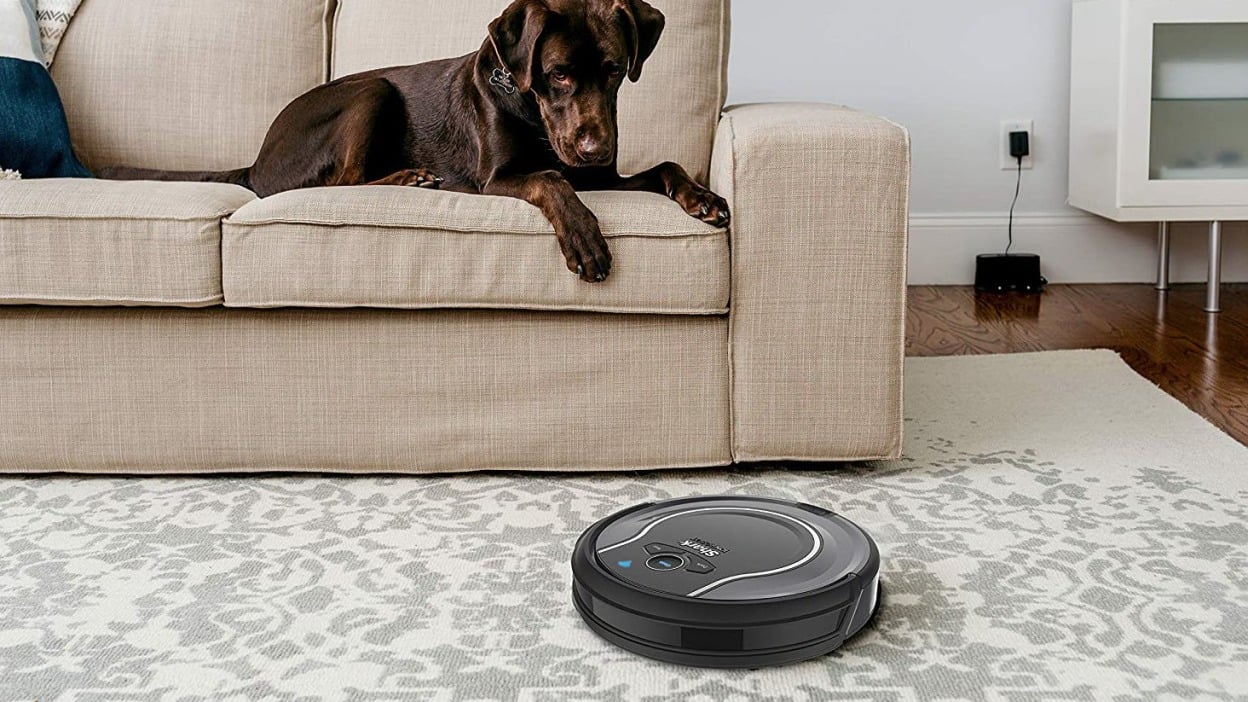
Shark Robot Vacuum Cleaner would show you an “Error 2” when there is some sort of obstruction with its parts, and they are unable to move.
It’s a quite common issue, and when this issue arises you cannot use your vacuum cleaner.
If you are facing error 2 on your Shark Robot Vacuum, this guide is for you, in which we will provide you with straightforward steps for resolving the problem.
Causes Of Error 2 In Shark Robot Vacuums
Before you move forward to the resolution of the issue, you need to know what exactly causes the error 2 on the Shark Robot Vacuums.
Obstruction of various parts of the Shark Robot Vacuum can cause it to show an error.
Below, we have provided you with a complete list of causes that can cause your Shark Robot Vacuum Cleaner to cause error 2.
Clogged Brush
The most common reason for the display on error 2 on a Shark Robot Vacuum Cleaner is the clogged brush. Since the brush is always in contact with the dirt, it can get stuck
When the dirt accumulates in the brush of the vacuum cleaner, it can get stuck, so, the brush cannot move, as a result, it shows error 2, meaning that there is some sort of obstruction.
Bin Is Full
When the dirt bin on the Shark Robot Vacuum cleaner is full, it can’t store any more dirt, thus it shows the error.
Usually, people don’t pay attention to this, as they think that a full waste bin can’t get this error. But, the actual case is quite different as a full bin can also provide you with this error.
So, if your Shark Robot Vacuum provides you with error 2, also, check out the bin whether it is full or not.
Clogged Wheels
Another common reason for the display of error 2 on the Shark Robot Vacuum cleaner is the wheels. If the wheels are filled with dirt and dust, they can get stuck, and as a result, your Shark Robot Vacuum Cleaner can show this error.
Knowing whether your vacuum cleaner wheels are stuck or not is a simple procedure. By using your fingers check out the movement of the wheels, and in case you get a feeling that they are stuck, clean it, and you are good to go.
Software Issue
Sometimes, there is a software issue on the vacuum cleaner, which causes systematic errors on the vacuum cleaner, which ultimately provides you with Error 2.
There are two different ways of fixing the software issue on the Shark Robot Vacuum cleaner, you have to first do the reset, and if the reset does not fix the issue, then you need to perform the software update.
Below, we have provided you with complete steps that you can use to fix the software issues on the Shark Robot Vacuum cleaner.
Initial Checks For Shark Robot Vacuum Error 2
Now, that you already know that the Error 2 on the Shark Robot Vacuum cleaner, it’s time to do the initial troubleshooting in order to fix the issues.
In the basic troubleshooting, you need to check out the physical signs of clogging on the Shark Robot Vacuum cleaner, if there is any visible obstruction, remove it, and your vacuum cleaner will come back to life.
In the second step, you need to reboot the vacuum cleaner, simply rebooting the vacuum cleaner can help you get rid of Error 2 on the vacuum cleaner, as it clears the cache, and clearing the cache can help you resolve the problem.
Here are the steps for Rebooting the Shark Robot Vacuum Cleaner:
- Locate the position of the power button.
- Afterwards, turn off the Shark Robot Vacuum Cleaner, and wait for at least 20 seconds.
- Finally, turn on the Shark Robot Vacuum Cleaner, and check whether the problem is resolved or not.
Clearing Brush Roll Obstructions In Shark Robot Vacuums
Cleaning the brush roll is one of the main steps involved in troubleshooting the error 2. Due to a clogged brush, your vacuum cleaner can show you this error. By cleaning the roll brush you can get rid of the issue.
Here are the Steps for Cleaning Brush Roll on Shark Robot Vacuum:
- In the very first step, you need to turn off the Shark Robot Vacuum cleaner.
- Afterward, you need to turn the Shark Vacuum upside down.
- Now, unscrew the brush roll cover
- Get the brush roll out from the vacuum cleaner
- Afterward, start cleaning the brush with the help of a rigid brush, and microfiber cloth.
- Put WD40 in the brush gently, and let it dry.
- Fit the brush roll back into the Shark Robot Vacuum, and put the screws back.
- Start the vacuum, and see whether it works or not.
Resolving Wheel And Sensor Issues In Shark Robot Vacuums
Stuck wheels, and sensor issues both are common culprits behind error 2 on the Shark robot vacuum cleaner. Here, we will discuss the simple yet effective procedure for fixing stuck wheel sensors as well as the sensor issues in Shark Robot Vacuum cleaners.
Here are the Steps for Resolving Wheel and Sensor Issues:
- Firstly, turn off the Shark Robot Vacuum cleaner.
- Flip it upside down, and start looking at the wheels.
- Now, check which of the wheels is having issues in movement.
- Take a pin, or a brush to remove the dirt which is causing issues on the wheel and not letting it move freely.
- Also, check out the sensor if it is blocked in any way.
- Turn on the Shark robot vacuum cleaner once again, and see whether it
Resetting Your Shark Robot Vacuum To Fix Error 2
Resetting your devices is another common way of fixing errors on your devices. Similar to all the other issues, you can also fix Error 2 on the Shark Robot Vacuum cleaner.
Here are the Steps for Resetting the Shark Robot Vacuum Cleaner:
- Open the “SharkClean” app.
- Connect your Shark Robot Vacuum Cleaner to the mobile app.
- Go to the “Settings”.
- Click on the “Factory Reset Option”.
- Now, your Shark Vacuum Cleaner will reboot, and after the reboot is done, your reset will also be completed.
Software Updates For Shark Robot Vacuum: A Technical Fix For Error 2
There can be a systematic error on the Shark Robot Vacuum which is causing it to show Error 2.
If doing a simple reset did not fix the issue with you, updating the software to the latest version might resolve it, as in software update, the software is updated to the latest version.
Here are the Steps for Updating Firmware on the Shark Robot Vacuum:
- First of all, you need to download the “SharkClean” app from the PlayStore.
- Now, connect the app to the vacuum cleaner.
- Afterward, you need to open the app, and go to “Settings”.
- Click on the “Software Update”.
- You will see the list of all the available updates, download it, and the OS on your Shark Vacuum will be updated to the latest version.
Professional Repair For Shark Robot Vacuum Error 2
If none of the above-provided steps work out to fix Error 2, you need to contact the Shark Robot Vacuum Cleaner support. The procedure for contacting the support is straightforward.
Below, we have provided you with steps in order to contact Shark Support for guidance and a warranty claim:
- In order to get professional advice from Shark, you need to contact them at this number “1-888-228-5531”.
- Afterward, they will arrange a one-way video call.
- In case there is a simple problem, Shark will guide you to fix it.
- If there is a warranty claim required, the customer support agent will provide you with information to claim it.
Conclusion
When your Shark Robot Vacuum shows error 2, it means that the wheel, roller brush, or side brush is clogged, and the parts are not able to move freely.
Here, in this blog post, we not only provided you with a complete list of the solutions, but also, we provided you with the complete cause of the issue, so, this problem does not arise in the future.